1: Log into the Microsoft 365 portal: https://portal.office.com
2. Click the “Outlook” icon on the left hand navigation:

3. Click the cog in the top right hand corner:

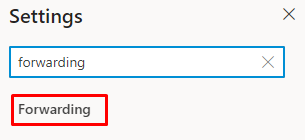
4. Type “forwarding” into the search box, then click on “Forwarding”:
5. Tick the “Enable forwarding” box then enter an email address into the box:
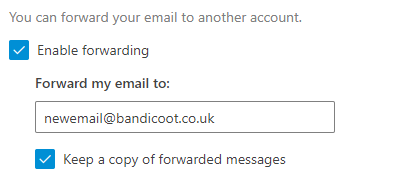
6. Tick the “Keep a copy of forwarded messages” box if you’d like to keep a copy of the emails in your own mailbox as well as forward them to the email address listed above.
7. Click the “Save” button at the bottom to save your changes:

To remove the forwarding in future, just navigate to the forwarding settings again and untick the box.