If you already have “Microsoft Outlook” downloaded, then please skip to step 2 otherwise, please start with step 1
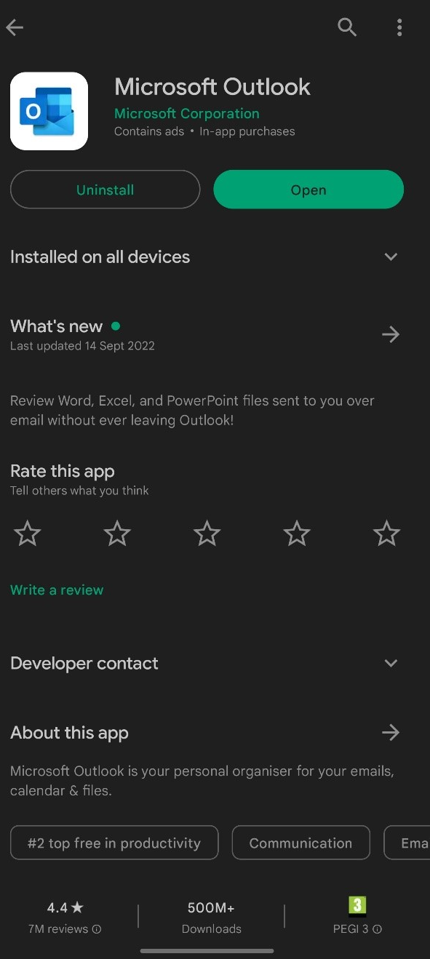
1. Please go to the Play Store and install “Microsoft Outlook.” Once installed, open the Outlook app from your home screen.
If this is your first time downloading and opening Outlook, please skip step 6.
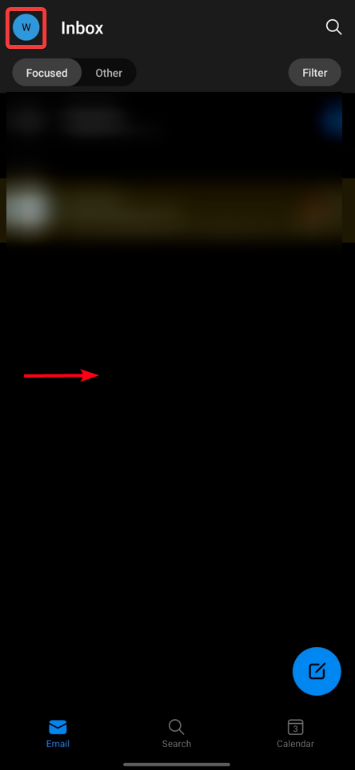
2. Once Outlook is open. Tap the “W” symbol in the top left. or swipe to the right.
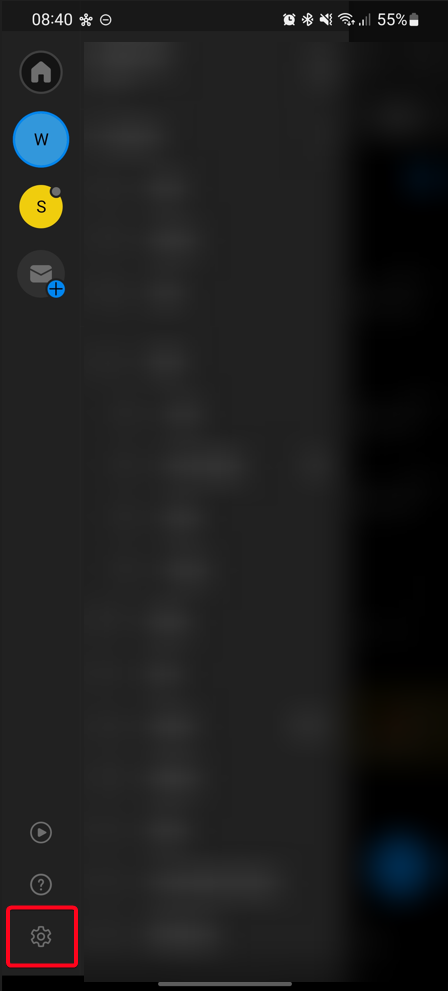
3. Please then press the settings icon in the bottom left.
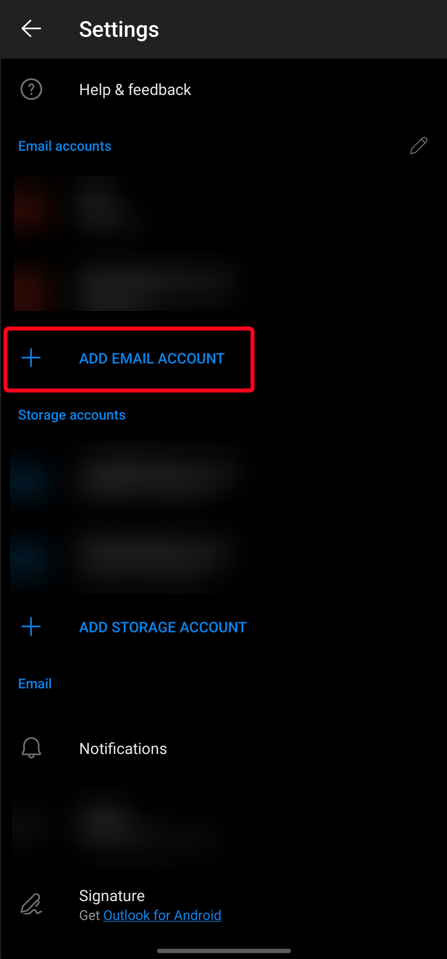
4. When the settings menu is open, press “Add Email Account.”
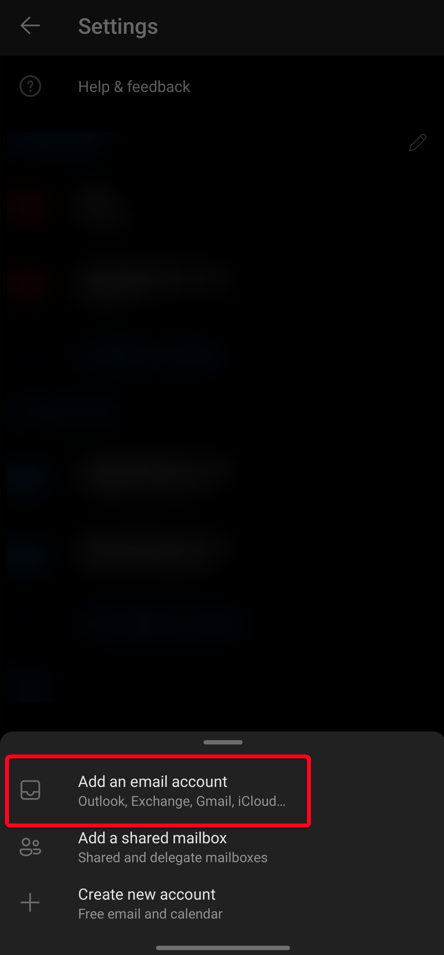
5. Please then press “Add an Email account.”
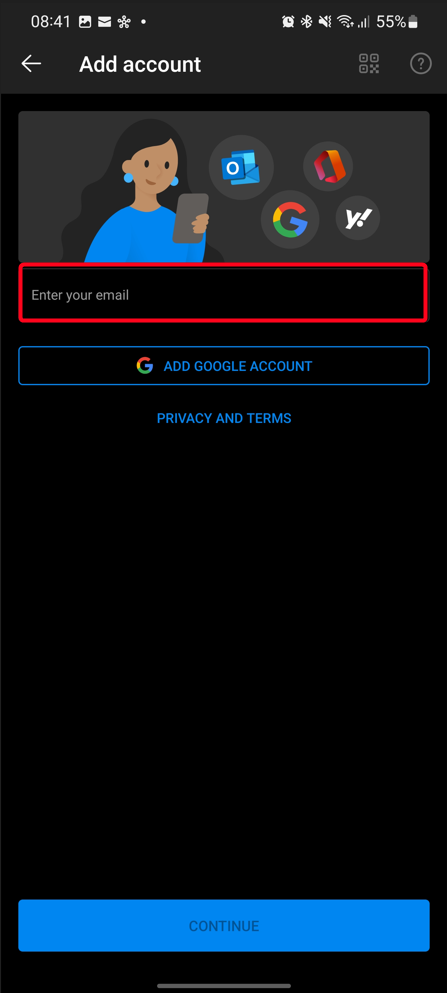
6. Now enter your Microsoft 365 details.
If you require any further assistance, please open a ticket here or call us on 01282 506 616