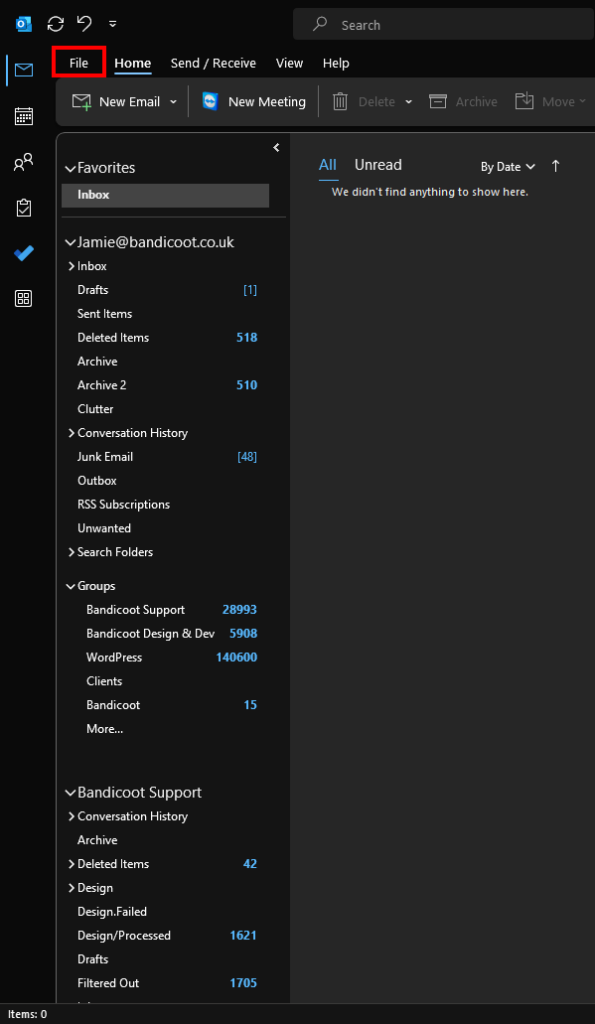
1. Open Outlook and click “File” in the top left:
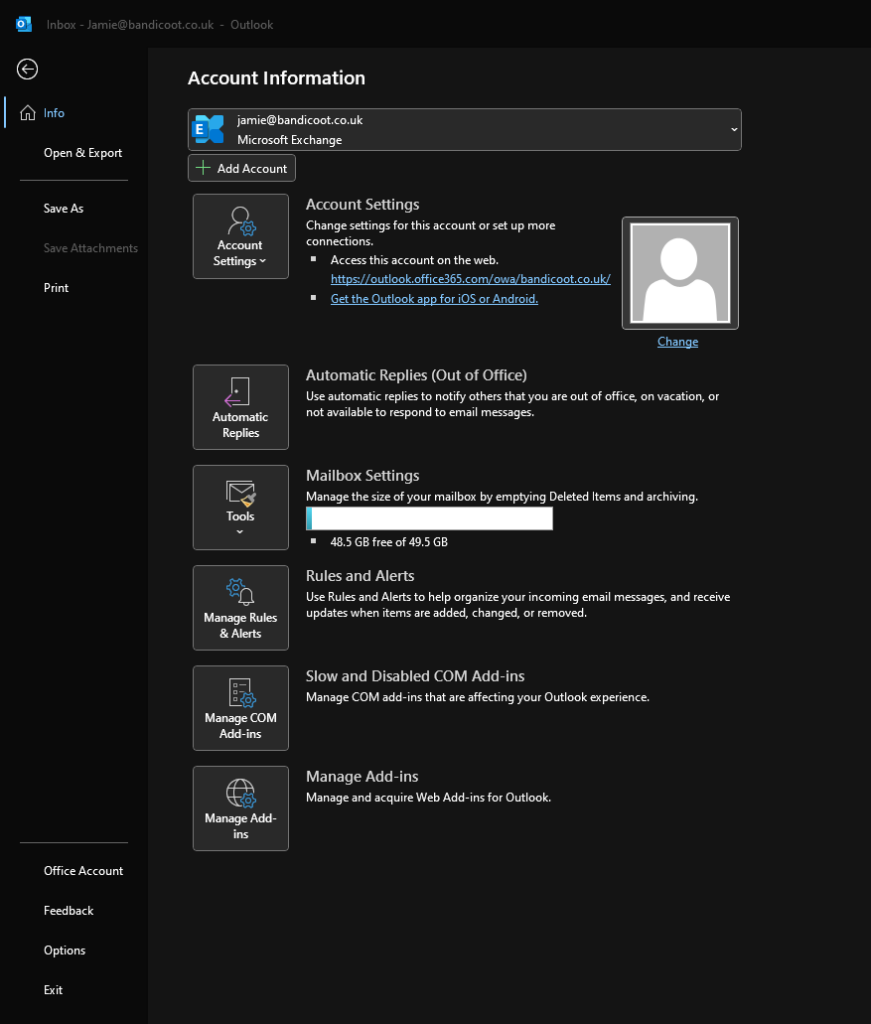
2. Click “Automatic Replies”:
3. Check “Send automatic replies”:
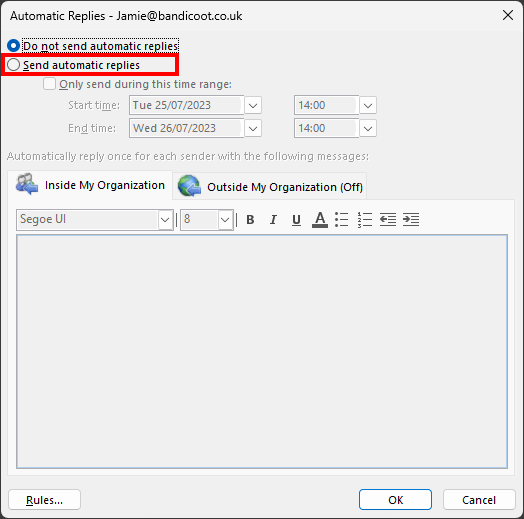
4. Write your automatic reply in the text box:
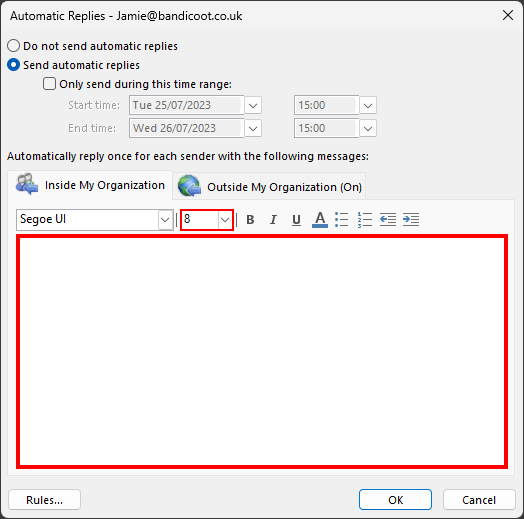
Be aware that the default formatting may be quite small, so you’ll probably want to set that to size 11 or 12.
5. Write an automatic reply for people outside your organisation by clicking “Outside My Organization”:
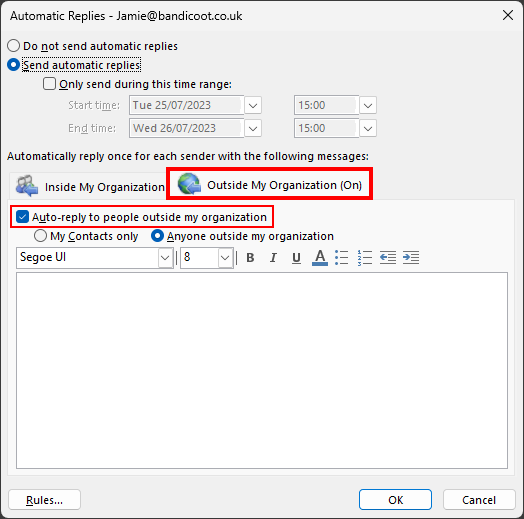
Be aware that this feature can be disabled by un-checking “Auto-Reply to people outside my organization”, if you wish.
Once you’re happy with your automatic replies, click “OK” in the bottom right corner, and your automatic replies configuration will be saved.
If you have any problems, please feel free to contact us here or by calling 01282 506 616.