If you already have the latest version of Office 365 and Microsoft Outlook downloaded, please skip to 1.7 Please also note that if you have Outlook 2013 and below, you will not be able to add an Office 365 Email – If you are unsure which version of Outlook you are running, please feel free to contact us here or by calling 01282 506 616
Section 1 – Installing Office
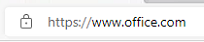
1.1. First, browse to www.office.com
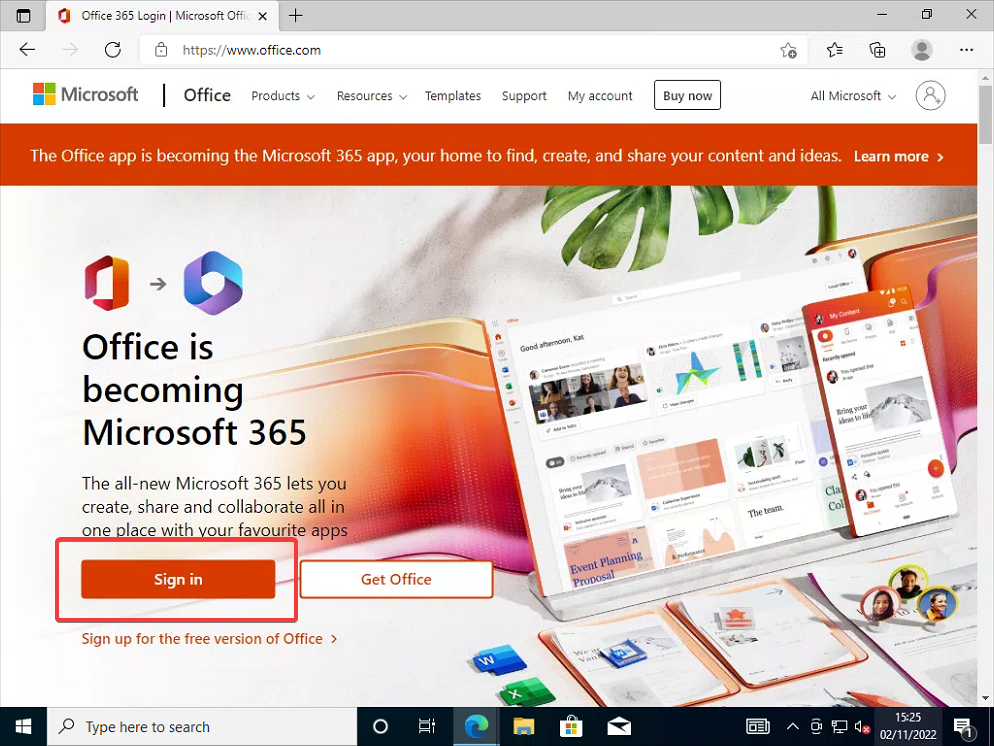
1.2. Click “Sign In”
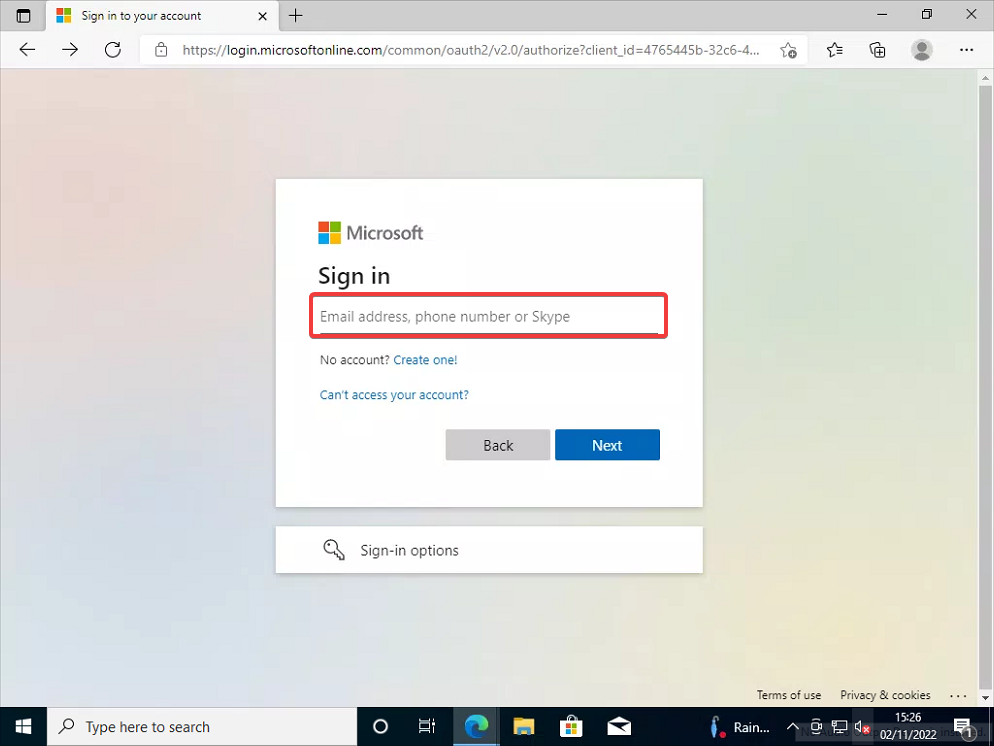
1.3. Enter your account details
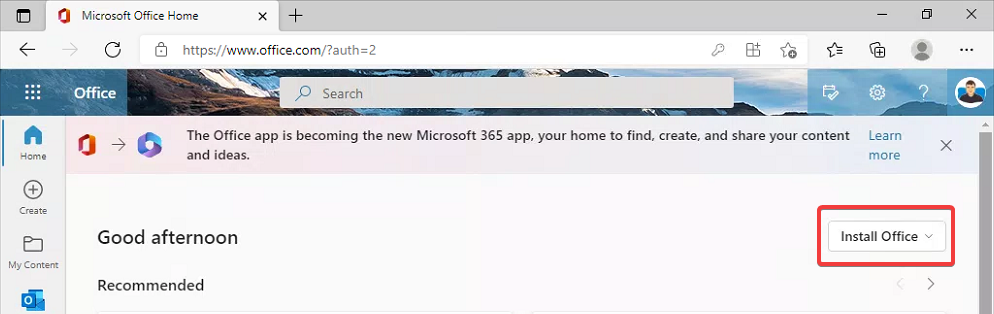
1.4. Click “Install Office”
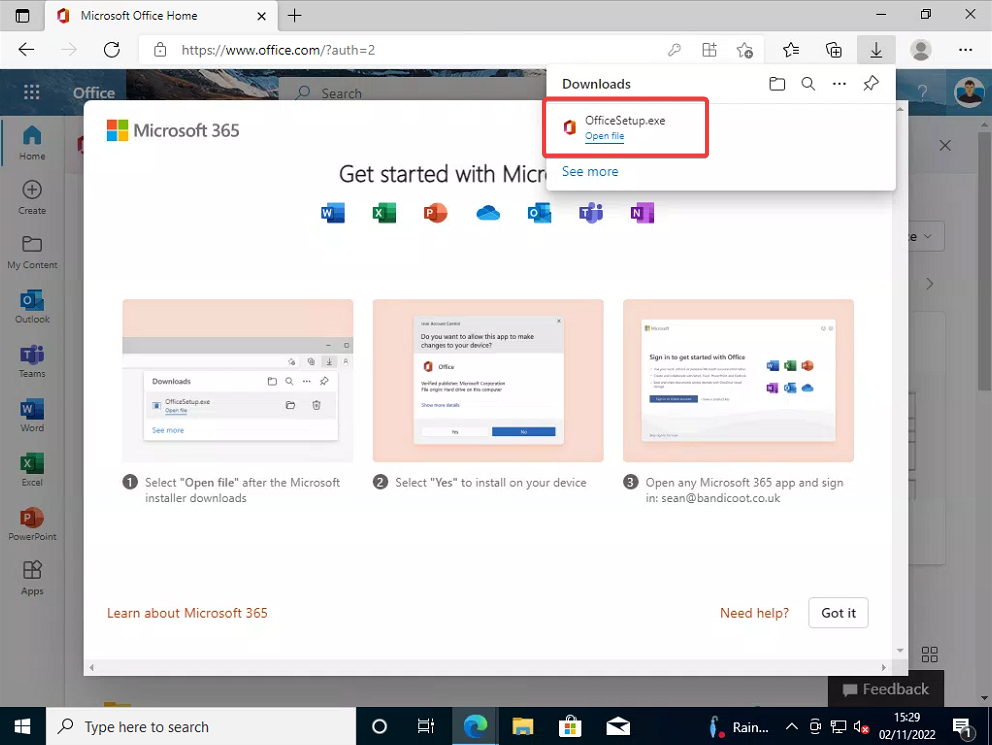
1.5. Once downloaded, run the installer
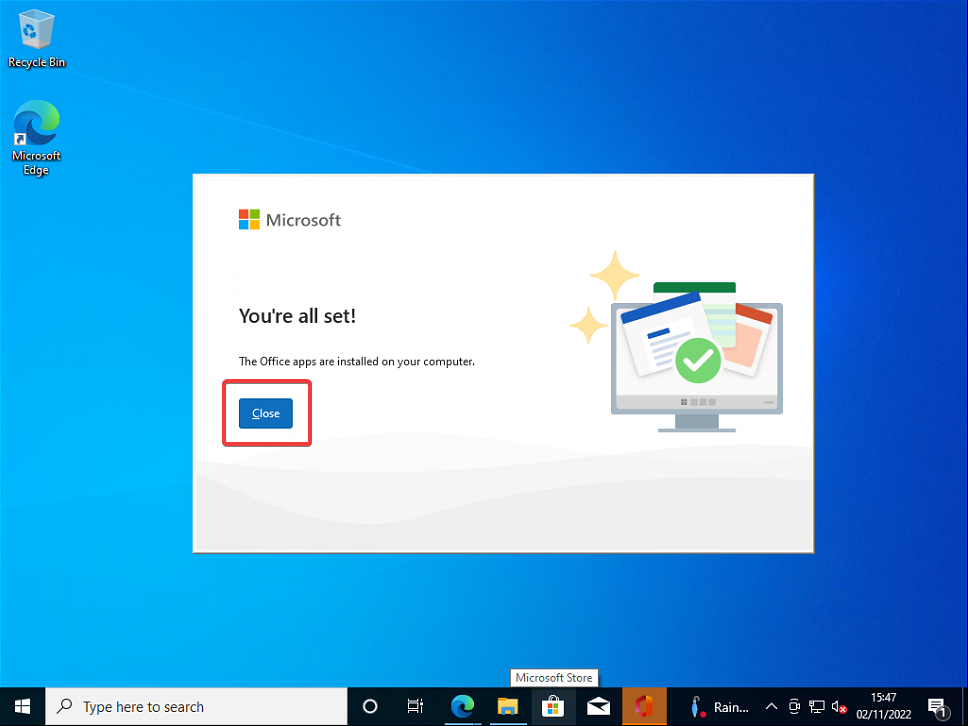
1.6. Close the installer
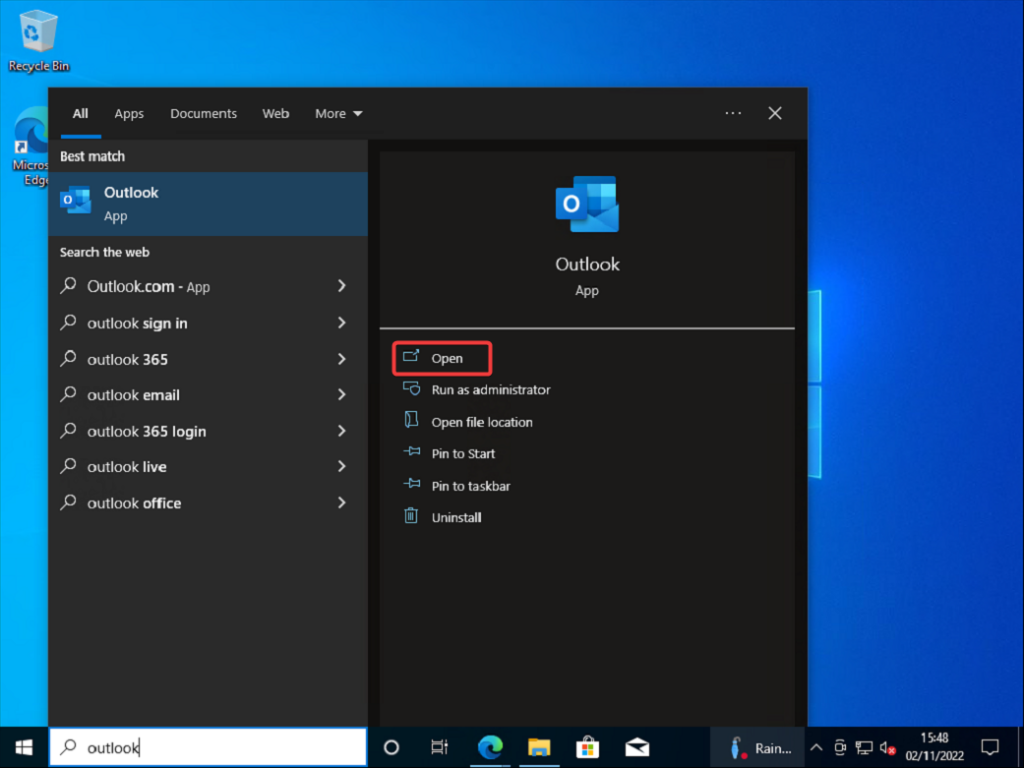
1.7. Open outlook
1.8. Log in
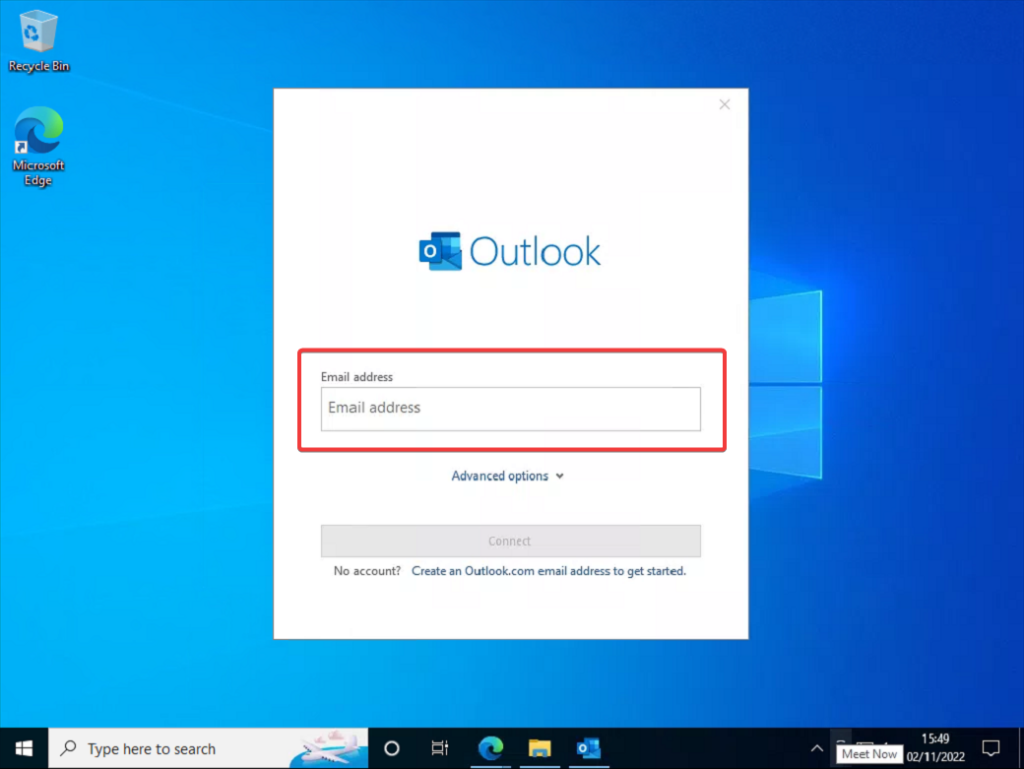
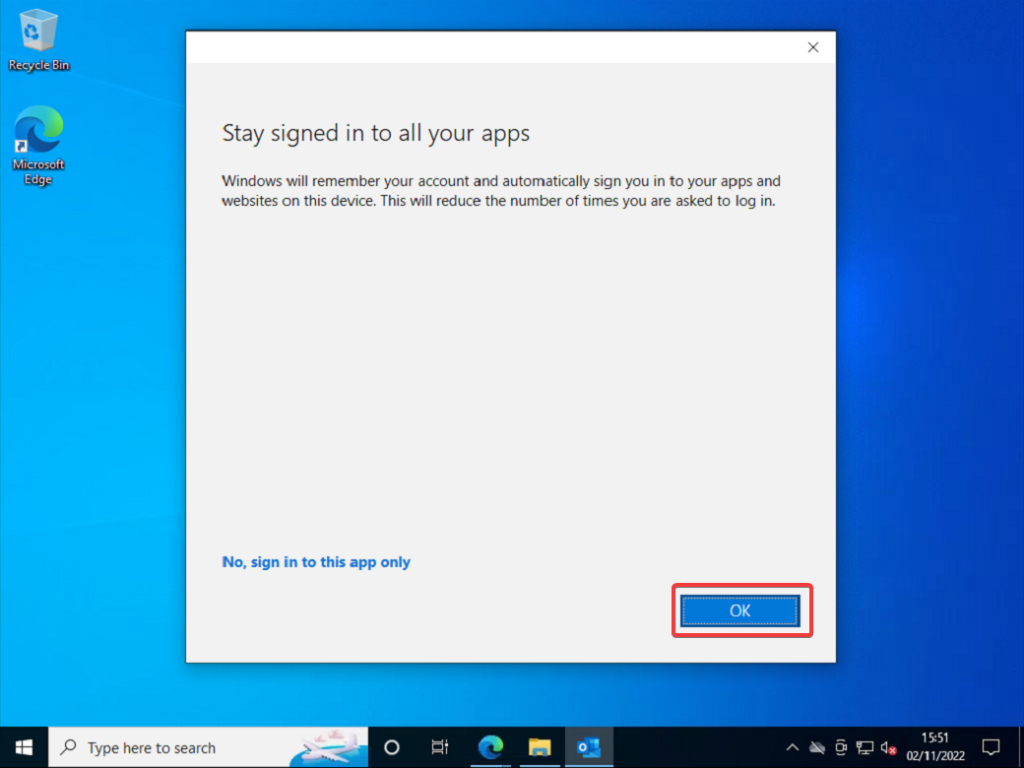
1.9. If on a private device, have Windows remember your account
1.10. Add any additional emails
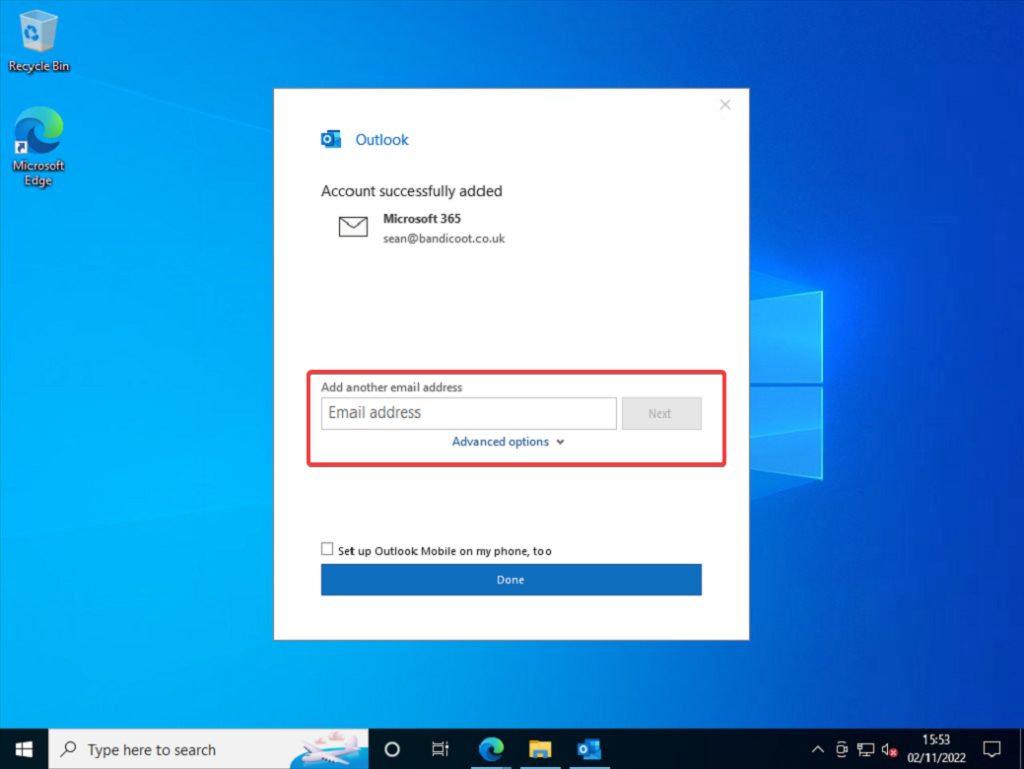
Click “Done” once you’ve added all your emails
1.11. Accept the license agreement
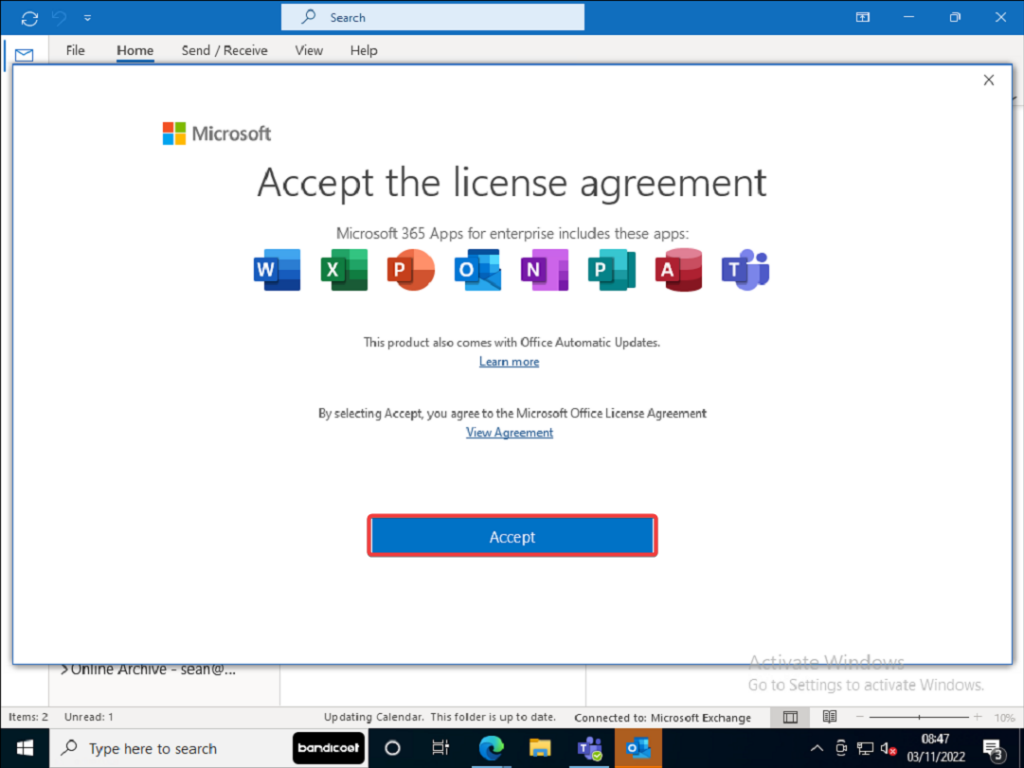
1.12. Confirm Outlook is working correctly
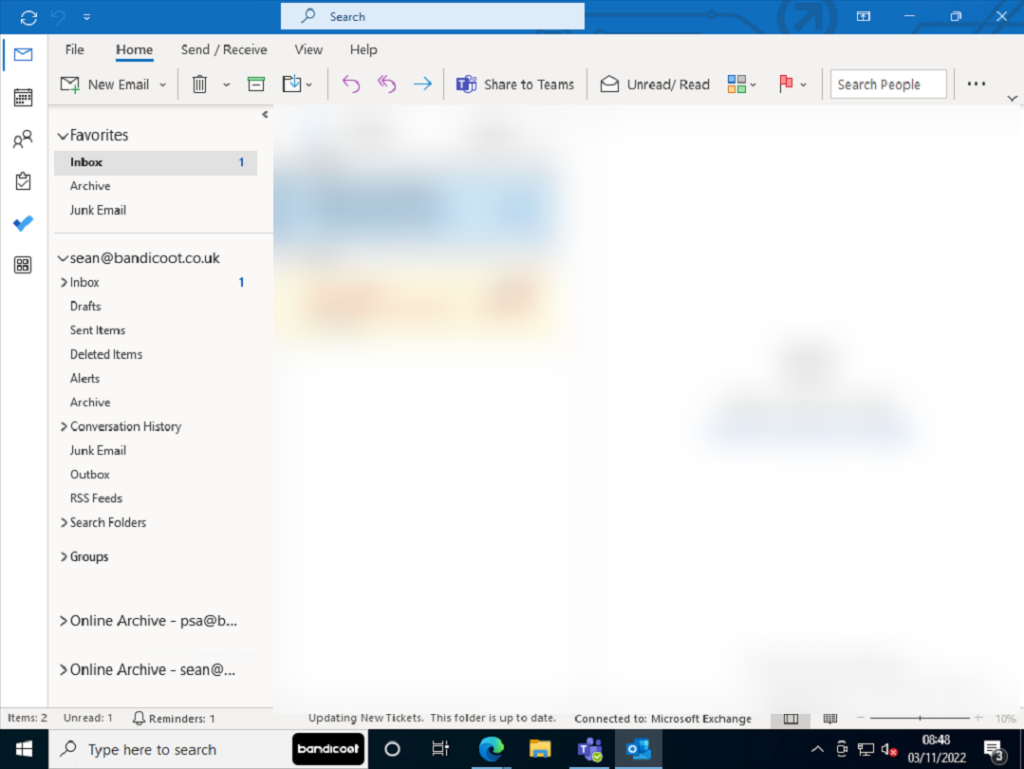
Section 2 – Adding an account to Outlook, retrospectively
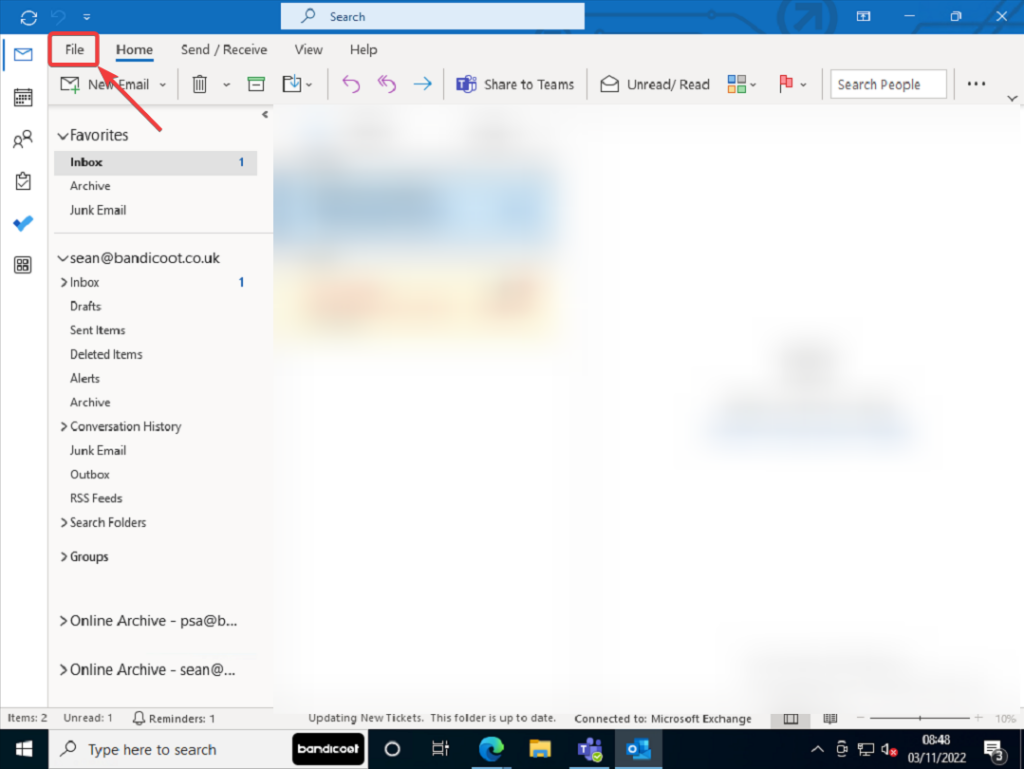
2.1. Click “File”
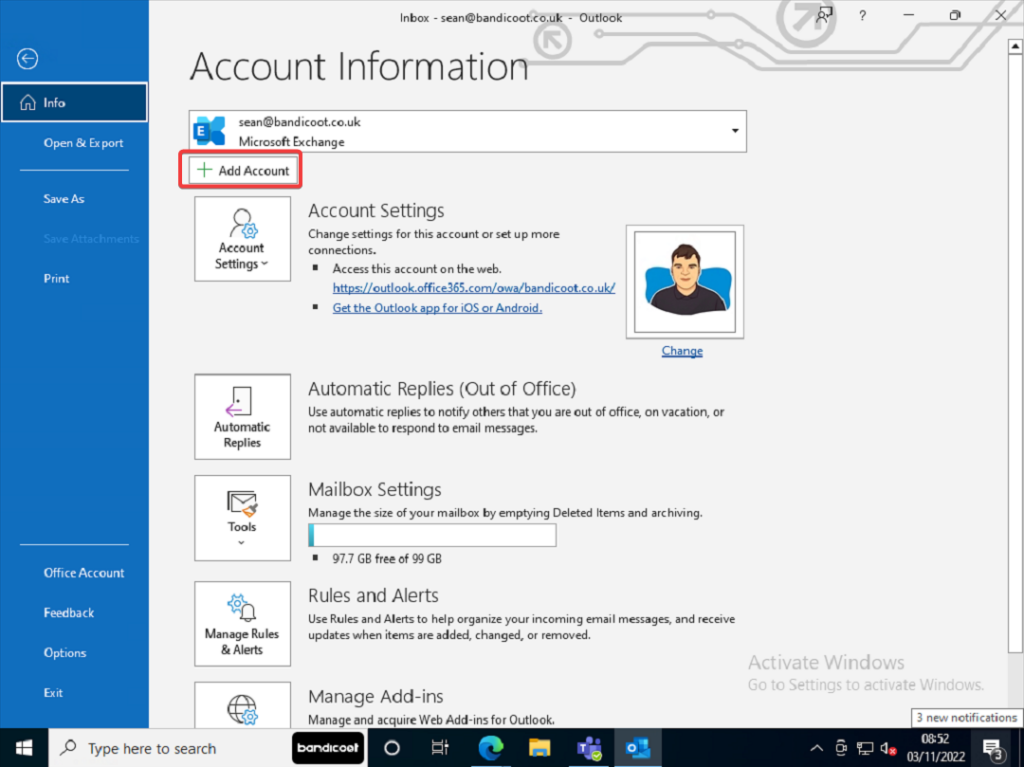
2.2. Click “Add account”
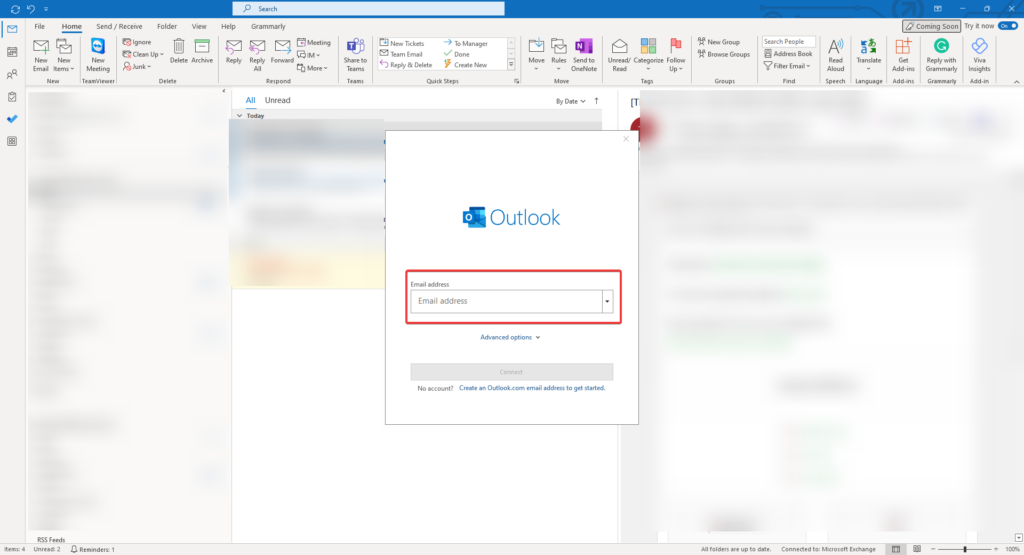
2.3. Enter the account’s details
If you require any further assistance, please open a ticket here or call us on 01282 506 616